
Minecraft APK – Android
Explore, Build & Survive in a Block-Based World
Android Game GuideLooking for a mobile game where you can build your own home, explore mysterious places, collect resources, and create almost anything you can imagine? Minecraft APK brings these activities together in a block-based world where every new world can offer a different adventure. You can start with a small shelter, explore nearby caves, build a farm, or spend hours designing an entire city.
This guide explains the main Minecraft gameplay features, available modes, Android installation process, and important things to check before downloading an APK file. Whether you are new to the game or returning for another building project, the sections below will help you understand what to expect.
Minecraft APK Information
*The version number above is based on the APK filename provided for this download. It is not a claim that this is the newest official Minecraft release. Device compatibility and file size should be checked before installation.
Explore This Guide
What Is Minecraft APK?
Minecraft is a sandbox game developed by Mojang Studios. Instead of following one fixed path, players are free to decide how they want to spend their time. One player might build a simple wooden house, while another may spend days creating a detailed castle or underground railway. This freedom is a big part of what makes the game enjoyable.
The world is made up of different blocks that can be collected, placed, and used to create structures. You can explore forests, deserts, oceans, mountains, and underground caves. Along the way, you may find villages, useful materials, hidden locations, and creatures that make each journey feel different.
The Android edition brings this familiar gameplay to a touchscreen. You can move around, mine blocks, craft items, and manage your inventory directly from your phone. Your experience will depend on the installed edition, device performance, and game settings.
Exciting Gameplay Features
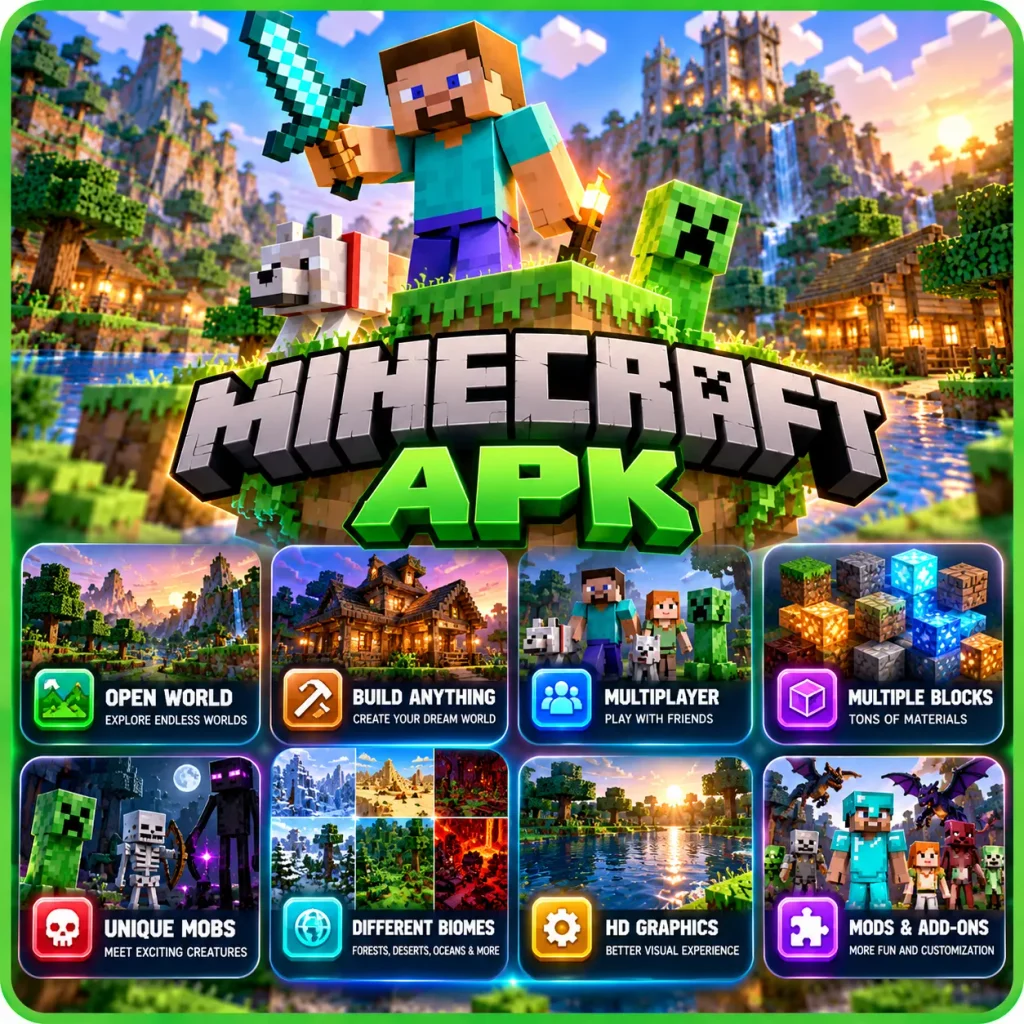
The appeal of Minecraft comes from how its different systems work together. Exploration gives you materials, crafting helps you use those materials, and building gives you a reason to keep discovering new places. Here are some of the main features players can enjoy.
Open-World Exploration
Travel through forests, mountains, deserts, oceans, and underground caves. Different environments contain different resources and places to discover, so exploring can be just as rewarding as building.
Building & Crafting
Collect wood, stone, iron, and other materials to make useful tools and structures. Start with a basic shelter and gradually turn your ideas into houses, farms, bridges, or large creative projects.
Different Game Modes
Choose a gameplay style that suits your mood. Survival adds resource management and danger, while Creative focuses on building. Other modes offer their own rules and challenges.
Multiplayer Adventures
Supported multiplayer options let you play with friends, work on shared projects, and explore together. Online access, server compatibility, and account requirements can vary.
Exploration & Adventure
Search caves, discover structures, gather rare materials, and visit different dimensions. Each location can bring new challenges, making exploration an important part of the experience.
Skins & Customization
Customize your character and change the look of your world using supported skins, texture packs, and add-ons. Available options depend on the edition and content you use.
Minecraft Game Modes Explained
Survival Mode
Survival Mode gives you a world where preparation matters. You begin by collecting basic materials, making tools, and finding food. As you explore, hostile mobs can appear in dark areas, so building a safe shelter and keeping useful equipment nearby becomes important. You can also discover valuable resources and improve your equipment as you progress.
Creative Mode
Creative Mode is ideal when you want to focus on ideas rather than resource collection. Players can use available blocks and items to design structures, experiment with layouts, and build large projects. It is a good place to practice construction or create a world simply for fun.
Adventure Mode
Adventure Mode is commonly used in custom maps and player-created experiences. Its rules can restrict how certain blocks are interacted with, depending on the map settings. This makes it useful for puzzle maps, challenges, and guided adventures.
Multiplayer Mode
Multiplayer lets players share a world or join supported servers. Friends can work together on a town, explore different areas, or take part in community activities. A stable internet connection and compatible game versions may be needed.
Why Do Players Enjoy Minecraft on Android?
The mobile edition makes it convenient to visit your world without sitting at a computer or console. You can check a farm, collect materials, work on a building, or explore for a short time whenever it suits you. Touch controls are designed for mobile screens, and settings can be adjusted to match your preferred play style.
Performance is not identical on every phone. A newer device may handle larger worlds and visual effects more comfortably, while an older phone may need lower settings or fewer background apps. Keeping enough free storage and memory available can also help.
Understanding Minecraft MOD APK
A MOD APK is an unofficially modified Android application package. Unlike the standard version distributed through an official app store, a modified package may contain changes made by a third party. The changes can differ from one file to another, so the name of a download alone does not prove which features are included.
Some websites advertise modified Minecraft files with unlocked items, extra customization, or other changes. However, these features should not be assumed unless they have been tested and clearly documented for the exact file. Modified files may also stop working after game updates or cause compatibility problems.
Android Compatibility & Performance
Before downloading, check that your phone has enough free storage and supports the Android requirements of the particular APK build. The requirements can vary between releases, so it is better not to rely on a general Android version claim for every file.
Things to Check Before Installing
- Confirm that the APK is intended for your Android device.
- Make sure enough storage space is available for installation and game data.
- Check whether your device has sufficient RAM and graphics performance.
- Keep a backup of important worlds before changing or replacing a game installation.
- Be careful with files that request permissions unrelated to normal gameplay.
Minecraft Marketplace & Minecoins
The Minecraft Marketplace is a place where supported Bedrock Edition players can find additional content such as skins, maps, texture packs, and other creator-made experiences. Some items are available for free, while others require payment. The available content depends on the edition, platform, and region.
Minecoins are the official virtual currency used for eligible Marketplace purchases. They are not a separate Minecraft APK. Players should obtain Minecoins through official supported purchase channels and avoid websites claiming to provide free currency in exchange for account details or suspicious downloads.
How to Download Minecraft APK for Android
If you are looking for the Android APK file listed on this page, use the Download APK button at the top of this article. Before opening it, check the filename and make sure you understand that this is an unofficial APK download. For the safest and most reliable version, use the official Google Play Store listing.
- Open this page in your Android phone’s browser.
- Read the app information and review the compatibility details.
- Tap the Download APK button at the top of this page.
- Wait until the download is complete.
- Open your Downloads folder and check the downloaded filename before proceeding.
com.mojang.minecraftpe-v1.21.100.23-Android_8.0.apk
Check the downloaded file before installation.
How to Install an APK on Android
After downloading an APK, Android may ask you to allow installation from the browser or file manager that opened the file. Only change this setting when you trust the source and have checked the file.
- Open your phone’s File Manager and go to the Downloads folder.
- Find the Minecraft APK file you downloaded.
- Tap the file to start the installation process.
- If Android asks for permission, review the prompt and allow installation only if you trust the file.
- Follow the on-screen instructions and wait for the process to finish.
- Once installed, open the game and check that it works correctly.
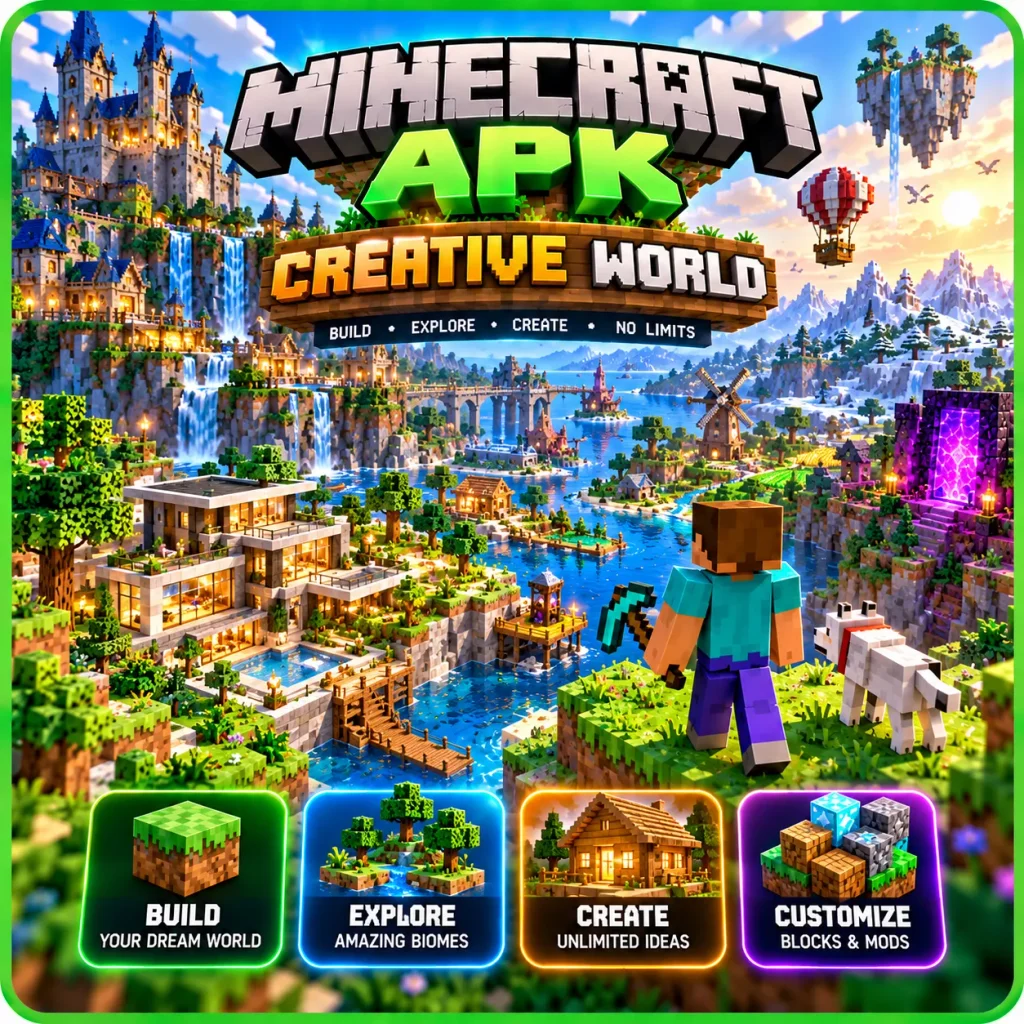
How to Create a Creative World in Minecraft
One of the most enjoyable things about Minecraft is turning a simple idea into a complete world. Creative Mode gives you a convenient way to experiment with buildings without spending time collecting every block. Follow these steps to create a new world.
- Launch Minecraft and open the Play section.
- Choose Create New and open the new world settings.
- Find the Game Mode option and select Creative.
- Give your world a name that is easy to recognize.
- Adjust the available world settings to suit your project.
- Select Create and wait for the world to load.
- Start building houses, gardens, farms, castles, or an entire city.
- Save your progress and return whenever you want to continue.
You can begin with a small project and add more details as your ideas grow. Try combining different block types, adding lighting, building pathways, and decorating the surrounding area. Even a simple house can become much more interesting with a garden, storage room, and a carefully planned entrance.
Minecraft Pros & Cons
✓ Advantages
- Encourages creativity and problem-solving.
- Offers several gameplay styles.
- Large worlds to explore.
- Building and crafting possibilities.
- Supported multiplayer experiences.
- Customization through compatible content.
! Things to Consider
- The official mobile game is generally paid.
- Long sessions can use significant battery power.
- Older phones may experience performance issues.
- Some Marketplace content costs extra.
- Online multiplayer needs appropriate safety settings.
- Unofficial APKs can carry security risks.
Frequently Asked Questions
Is Minecraft APK free to download?
The official Android version of Minecraft is generally a paid game. Some websites distribute APK files without charge, but an unofficial download is not the same as an authorized free copy. Check the source and terms before installing.
Can I play Minecraft offline on Android?
Many single-player activities can be enjoyed without an internet connection after the game is installed. Multiplayer, account-related services, and some online content require internet access.
Is Minecraft MOD APK safe?
No unofficial modified APK can be guaranteed safe just because a website describes it as secure. Modified packages may contain unwanted code or request unusual permissions. Use the official store version whenever possible and scan files before opening them.
Does Minecraft support Creative Mode?
Yes. Creative Mode is a standard Minecraft gameplay mode. It allows players to focus on building and experimenting with available blocks and items instead of following the usual Survival resource system.
Can I customize my Minecraft character?
Minecraft supports character customization through available skins and compatible content. The options you can use depend on your edition, account, and installed content.
Why is Minecraft APK not installing on my phone?
Possible reasons include an incompatible Android build, insufficient storage, a damaged download, a package conflict, or a security restriction. Check the file and device requirements before trying again.
Can I play Minecraft with my friends?
Yes. Supported multiplayer features allow players to join compatible worlds and servers. Make sure your game versions and multiplayer settings are compatible.
What are Minecoins used for?
Minecoins are the official virtual currency for eligible Minecraft Marketplace purchases. They can be used for supported creator content such as skins, maps, and texture packs. They are not a separate APK file.
How can I update Minecraft on Android?
For the official app, check the Google Play Store for available updates. If you use an unofficial APK, compatibility and update availability are not guaranteed. Back up important worlds before changing versions.
What should I do before installing an older Minecraft version?
Check whether the version is compatible with your device and existing game data. Back up your worlds first because changing versions or replacing an installation may cause data loss or compatibility problems.
Final Thoughts
Minecraft offers a flexible gaming experience built around exploration, crafting, and creativity. You can spend time surviving in unfamiliar environments, designing impressive structures, or creating a world that reflects your own ideas. Its different gameplay modes make it enjoyable for players with different interests.
Before downloading an Android APK, take a moment to check its version, compatibility, source, and security. The file linked on this page is an unofficial download and is not verified by Mojang Studios. For the most reliable experience and official updates, choose the Google Play Store version.